
How to Connect Claude Code to Google Search Console, Step by Step

Once Search Console is connected, Claude Code pulls clicks and impressions by day, page or query on its own, compares periods and checks straight away in the code why a page is not getting clicks. No CSV exports and no screenshots.
This is the first of four guides that accompany our case study on Claude Code on an obituary portal. Every Search Console chart in that article was built from data Claude pulled this way.
What you need
- Access to Search Console with Owner permissions, so you can add a user.
- A Google Cloud project. It is free, and you use the same project for GA4 and Tag Manager.
- Claude Code, locally or on claude.ai/code.
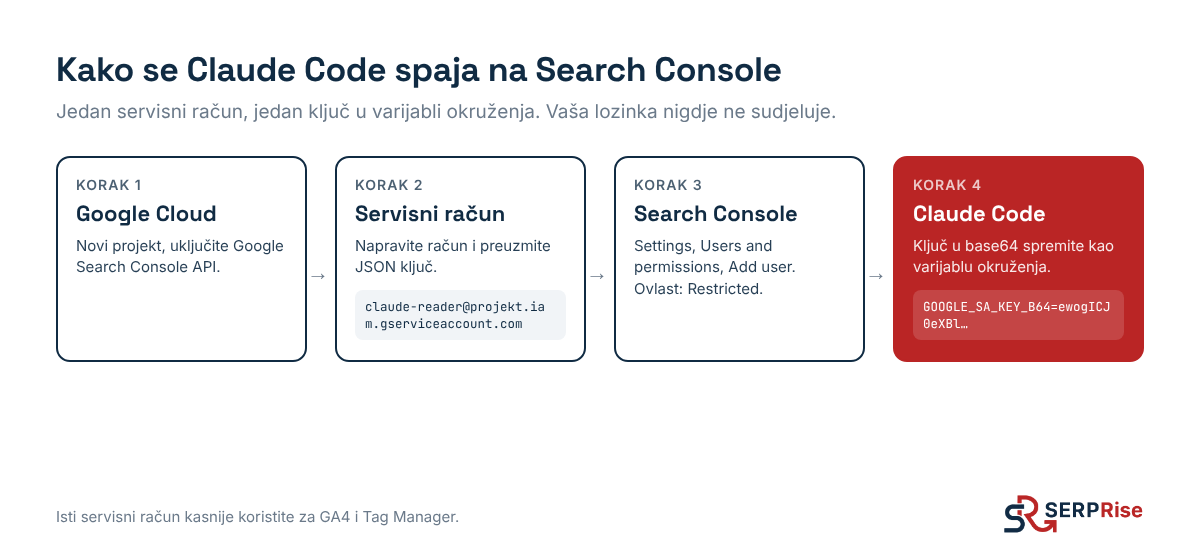
Step 1: create a service account
A service account is a Google user for programs. Claude signs in with it, not with your personal account.
- Open console.cloud.google.com and create a new project (or pick an existing one).
- In the “APIs & Services” menu, click “Enable APIs and services” and enable the Google Search Console API.
- Open “IAM & Admin”, then “Service accounts”, and click “Create service account”. Give it a name, for example claude-reader. It needs no roles in the Cloud project.
- Open the new service account, go to the “Keys” tab, “Add key”, “Create new key”, format JSON. A key file will download.
Never put the key file in a repository. Whoever has that file has the access you gave the service account.
Step 2: add the service account to Search Console
- In Search Console, select the site, then “Settings” and “Users and permissions”.
- Click “Add user” and enter the service account’s email (it looks like name@project.iam.gserviceaccount.com).
- To only read data, choose “Restricted”. You need “Full” only if you want Claude to submit sitemaps or make other changes.
Step 3: give the key to Claude Code
Turn the key into a single line of text (base64) so it is easier to store as a variable:
base64 -w0 key.json- Claude Code in the cloud: add a variable in the environment settings, for example GOOGLE_SA_KEY_B64, with that text.
- Locally: store it in a .env file that is listed in .gitignore.
Add one sentence to the project rules (CLAUDE.md or AGENTS.md): “Read Search Console with the service account from GOOGLE_SA_KEY_B64, property https://yoursite.com/”. That way Claude does not have to ask every time.
Step 4: check the connection
Ask Claude: “List the Search Console properties the service account can access.” Claude will write a short script that calls the API and prints the list. If your site is on the list, the connection works.
For us, the answer looked like this:
{ "siteUrl": "https://osmrtnica.com.hr/", "permissionLevel": "siteOwner" }If the list is empty, the service account was not added to the right property. A Domain property looks like sc-domain:yoursite.com, and a URL property like https://yoursite.com/. They are two different properties.
What to ask once it is connected
Here is what a real answer looks like when Claude has access. The question was one sentence, and Claude wrote the API query for four periods itself.
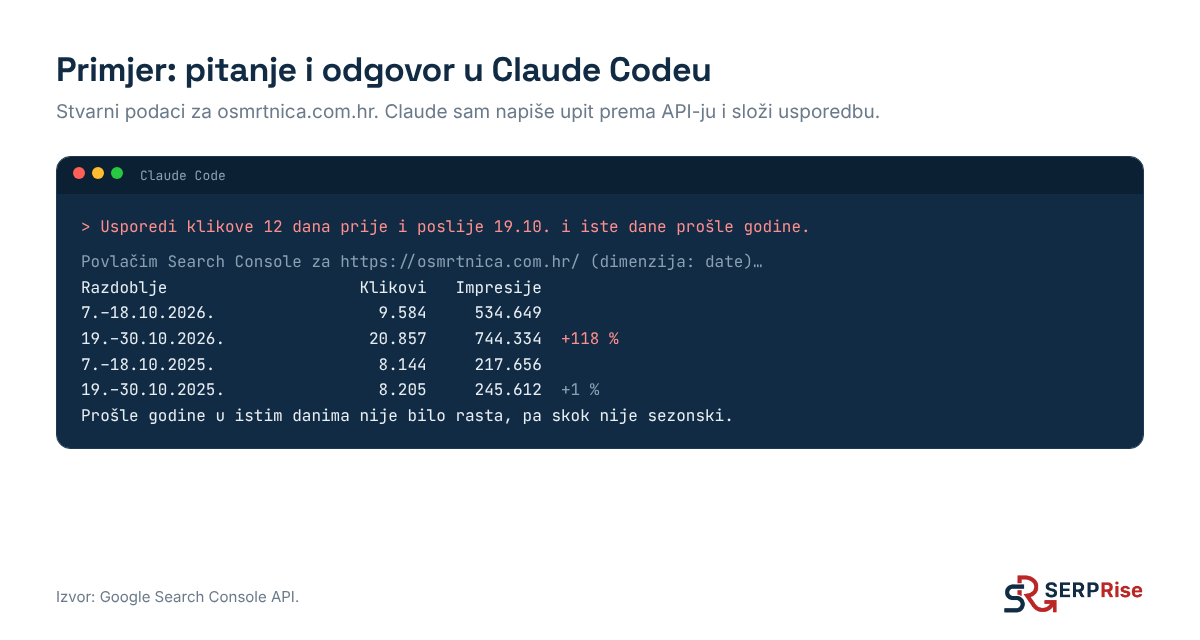
- “Compare clicks for the 12 days before and after 19 October with the same days last year.” The year-on-year comparison shows how much of the growth is seasonal.
- “Split clicks by page type based on the URL.” For us: individual obituaries, cities, funerals, cemeteries, blog.
- “Find queries with more than 2,000 impressions at positions 4 to 12.” These are the quickest wins.
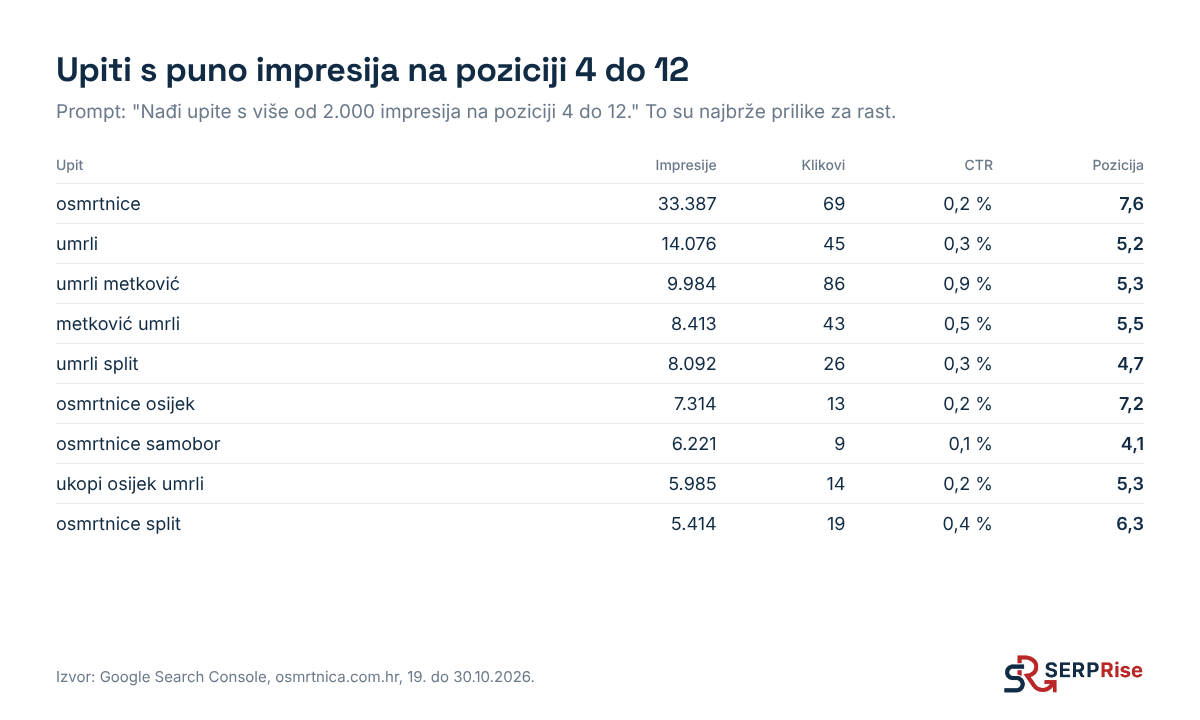
In our case the answer was clear: the city pages sit at positions 4 to 8 for queries with tens of thousands of impressions, and their CTR is below 1%. That is why they are first in the plan.
- “Draw a chart of clicks per week since July and save it as a PNG for the blog.”
The Search Console API returns up to 25,000 rows per request. For large sites Claude has to request the data in several pages (startRow), which it usually does on its own if you tell it the site has a lot of URLs. The data lags by two to three days.
Next step
Use the same service account for Google Analytics 4. You only need to enable one more API and add the account to GA4.